Your Wrist Called: The No-Spend Mouse Setup Audit for Remote Desks
Remote work has a way of making a $25 mouse feel like a medical device. You finish a Slack-heavy morning, notice a dull ache along your forearm, and start browsing vertical mice, wrist braces, and standing desks. Stop. Before you spend a dime, spend 20 minutes with the mouse and desk you already own. Most remote-work mouse discomfort comes from small geometry problems, not from a missing product.
This is a no-purchase ergonomic audit. You will need a phone timer, a tape measure or a piece of string, and your phone camera. Do it once today, take before-and-after photos, and repeat the check in a week. It is not medical advice, but it is a practical way to spot the obvious stuff.
Before You Move Anything: Take the Before Photo
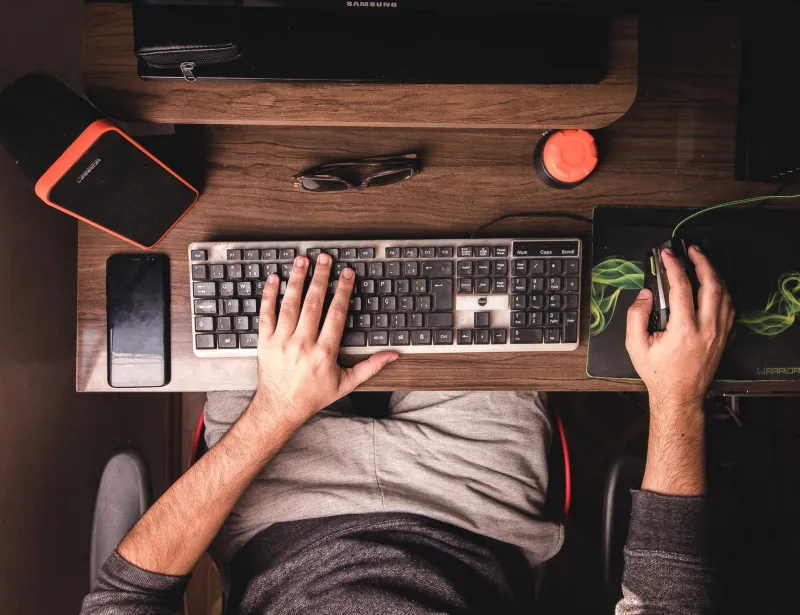
Set a timer for 20 minutes. Before you adjust a single thing, take two photos: one from the side and one from above. The side view shows your wrist angle, elbow height, and whether your forearm is floating. The top view shows how far your mouse sits from your keyboard and whether your shoulder is opened out to the side.
Look at the photos for 30 seconds. Note anything that looks like a reach, a wing, or a shrug. You are not judging your posture. You are collecting evidence.
Minutes 1-4: Check Your Grip
Pick up your mouse the way you normally do during a busy afternoon, not the way you pose for a product photo. Is your thumb clamped? Are your fingers curled into a claw? Is your palm hovering above the shell?
A relaxed grip lets the mouse rest in your hand instead of being held in a death squeeze. If you are gripping hard, lower the pointer speed slightly before you blame the mouse shape. A cursor that feels twitchy encourages a tighter hand. Try one notch slower and see whether your fingers unclench.
Minutes 5-8: Align the Mouse With the Keyboard
This is the big one. Put your keyboard and mouse side by side. Your mouse should sit close enough that your elbow stays near your torso, not out in the next time zone. If you have to reach past a full-size keyboard and numpad to get to your mouse, your shoulder is doing extra work all day.
Without buying anything, shift the keyboard left if your desk allows it. The goal is not perfect symmetry. The goal is a mouse position that keeps your shoulder down and your forearm roughly parallel to the desk. If your keyboard has a numpad you never touch, slide the whole board over and give the mouse some room.
Minutes 9-11: Reset DPI and Pointer Speed
On Windows, open Settings > Bluetooth & devices > Mouse. On macOS, check System Settings > Mouse. Set pointer speed to a level where you can move across the screen without lifting your hand constantly and without overshooting every button.
High DPI is not automatically bad, but if you are using a high setting and still gripping hard, the setting is not helping. Test a simple drag: move a file across the desktop, click a browser tab, and open a menu. If your hand feels tense, adjust one variable at a time. Leave mouse acceleration alone for a day, then decide.
Minutes 12-14: Check Armrest Height
Sit back in your chair. Your elbows should rest near the desk surface, roughly at 90 to 100 degrees, with your shoulders down. If the armrests are too high, your shoulders shrug. If they are too low, your wrists bend upward to reach the mouse.
Adjust what you can. Many chairs let you lower or remove armrests. A folded towel or a spare cushion can raise a low armrest temporarily, but the real test is whether your forearm can rest without your shoulder taking over. If your elbow floats all day, your neck will file a complaint by Thursday.
Minutes 15-17: Stop Working at the Edge of the Desk
Pull your chair in. Really in. A lot of remote desks are set up so the keyboard is deep and the mouse is perched near the edge, which forces your wrist into extension and your shoulder forward. Bring the mouse closer to your body and move the keyboard back if needed.
Your forearms should have support, not hang from the elbow. The mouse should not be balanced on the last two inches of the desk. If your desk is too shallow, move the monitor back slightly and reclaim the space.
Minutes 18-20: Build a Microbreak Routine
Set a repeating timer for every 30 minutes. When it goes off, take your hand off the mouse for 20 seconds. Roll your shoulders back, open and close your fingers, and stand up once an hour. The 20-20-20 rule for eyes is useful here too: every 20 minutes, look at something 20 feet away for 20 seconds.
The point is not a formal stretch program. The point is to interrupt the exact posture that made your wrist ache. Keep it small enough that you will actually do it on a packed Tuesday.
Your Printable Checklist
- Take a side photo and a top photo before adjusting anything.
- Relax your grip; lower pointer speed one notch if you are clamping.
- Move the keyboard left or the mouse closer so your shoulder stays down.
- Check Windows or macOS pointer speed with a simple drag test.
- Set armrests so elbows are near desk height and shoulders are relaxed.
- Pull the chair in; stop using the edge of the desk as a mouse pad.
- Set a 30-minute timer for a 20-second hand reset.
- Take after photos and compare them in seven days.
After Photos and the Seven-Day Test
Take the after photos from the same angles. You are looking for a shorter reach, a flatter wrist, and a shoulder that is not creeping toward your ear. If nothing changes after a week of small adjustments, that is useful information too. It may be time to look at a different mouse shape, but at least you will know the desk geometry is not the culprit.
No purchase required. Just 20 minutes, a camera, and a willingness to move your keyboard two inches to the left.