Your Mouse Is Probably Fine: Five Sub-$50 Desk Fixes to Try First
There is a moment in every remote worker’s life when the mouse becomes the suspect. Your wrist aches, your shoulder is tight, and the cursor feels like it is fighting you. You open a browser, start reading reviews, and suddenly you are three tabs deep into a $120 ergonomic mouse you do not really need.
Here is the uncomfortable opinion from Open Office Mouse: your mouse is probably fine. Not perfect, not custom-fitted to your hand, but fine. What is usually wrong is the desk around it. The reach is too long, the pad is too small, the cable snags, the screen sits too low, or the room is lit like a cave. Those problems follow you to any new mouse you buy.
In 2026, $50 still goes a long way if you spend it on the setup instead of the device. Here are five mouse-adjacent upgrades that deliver more ergonomic value than another mouse for most remote workers.
1. A Bigger, Better Mouse Pad
Price range: $15 to $35
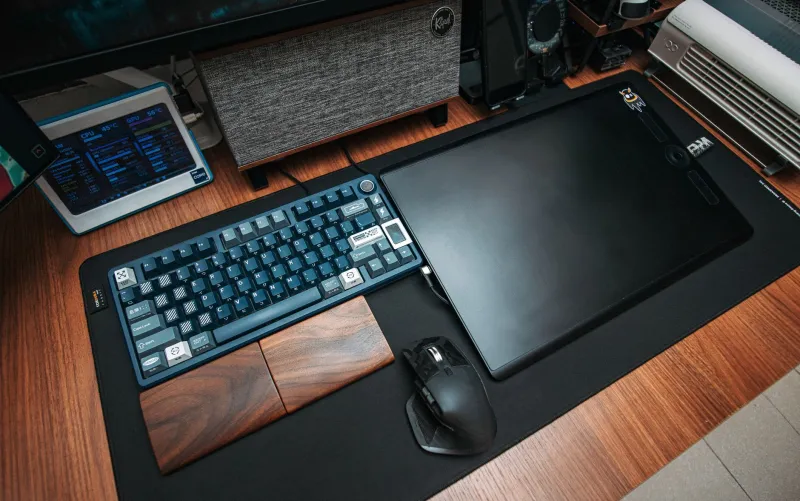
If your mouse pad is the size of a coaster, you are probably making more small corrections than you need to. A larger desk mat gives you room to move the mouse with your forearm instead of pinning your wrist in one spot. That alone can reduce the repetitive strain that builds up during a day of spreadsheet work.
Look for a pad with a surface that matches your control preference. A slick speed pad is great if you want low friction, but it can make a light mouse feel twitchy. A textured control pad adds a little drag, which can help with precise selections. Either way, get something large enough to cover your mouse area and part of your keyboard zone. A stitched edge is a nice durability bonus, and a rubber base keeps the pad from wandering across a smooth desk.
This is the first upgrade for a reason: it is cheap, it is immediate, and it changes how every mouse you own feels.
2. A Wrist Support That Does Not Overcorrect
Price range: $10 to $30
Wrist rests are tricky. A bad one props your hand up at an awkward angle and creates pressure where you do not want it. A good one gives your forearm a neutral place to land without forcing your wrist into a bend.
For mouse use, a low-profile gel or foam rest can help if your desk is a little too high or your palm tends to collapse onto the surface. For keyboard use, a slim rest can keep your wrists from resting on the hard front edge of the keyboard. The key word is slim. You do not want a wrist rest that makes your hand float above the mouse or pushes your forearm up into a shrug.
Try one for a week and pay attention to your forearm, not just your wrist. If you feel more tension, return it. A $15 rest that does not fit is still a $15 mistake.
3. Cable Management for the Mouse You Already Own
Price range: $10 to $25
A snagging mouse cable is a hidden ergonomic tax. Every time the cable catches on a notebook, a monitor stand, or the edge of the desk, you adjust your grip or tug with your wrist. Do that fifty times a day and it adds up.
A simple cable anchor, a few adhesive clips, or an under-desk tray can keep the mouse cable moving freely. If you use a wired mouse, aim for a gentle curve with enough slack near the mouse. If you use a wireless mouse, use the same budget to tidy the charging cable so it is not draped across your work area. This is not glamorous. It is also one of the cheapest ways to make a decent mouse feel lighter and smoother.
4. Desk Lighting That Reduces the Lean
Price range: $25 to $45
Lighting sounds like an eye-strain issue, and it is. But it is also a posture issue. When your desk is dim and your screen is the brightest thing in the room, you lean in. When you lean in, your shoulder rolls forward, your neck extends, and your mouse arm follows. A simple task lamp or a bias light behind the monitor can let you sit back without squinting.
You do not need a studio setup. A compact LED desk lamp with adjustable color temperature is enough. Put it to the side of your monitor so it lights your keyboard and papers without glaring off the screen. If you take video calls, a small light in front of you can also improve how you look without changing your mouse at all. The ergonomic win is subtle but real: less leaning, less shoulder tension, and less fatigue by the afternoon.
5. Monitor Positioning That Brings the Work to You
Price range: $25 to $50
If your monitor sits too low, you tilt your head down and round your shoulders. Your mouse hand then works from a collapsed position. A monitor riser or a basic adjustable stand can lift the screen so the top third is roughly at eye level, which helps you sit taller and keeps your arms in a more natural range.
A $30 riser with a drawer or a shelf can also free up desk space, which may let you bring the mouse closer and reduce reach. If your desk is deep and your monitor is far away, a monitor arm under $50 can be a bigger win than a new mouse, especially if it lets you pull the screen forward and clear the area underneath. Check the weight limit and your desk thickness before buying. A monitor that tips over is not an ergonomic upgrade.
When a New Mouse Actually Makes Sense
This is not a blanket ban on mouse shopping. Buy a new mouse if the shape is wrong for your grip, if the scroll wheel is failing, if the sensor skips, or if you have tested a different weight and found a clear improvement over full workdays. Those are device problems.
But if the issue is reach, drag, glare, screen height, or a wrist that never gets a neutral place to rest, a new mouse is just a fresh device in the same bad setup. Fix the desk first. Then, if you still have a mouse problem, you will know it is actually the mouse.
The Cheap-First Rule
For most remote workers, the best ergonomic purchase is not the most expensive one. It is the one that removes the friction you feel every day. A larger pad, a slim wrist rest, a cable anchor, a decent lamp, and a monitor riser can all land under $50 individually—and together they often cost less than a serious ergonomic mouse.
Start with the upgrade that matches your biggest annoyance. If your wrist is pinned, start with the pad. If your cable snags, start with cable management. If you lean toward the screen, start with lighting or monitor height. Your current mouse may not be the villain. It may just be working in a bad neighborhood.