Eight Buttons, Two Jobs: The Case for Decluttering Your Mouse

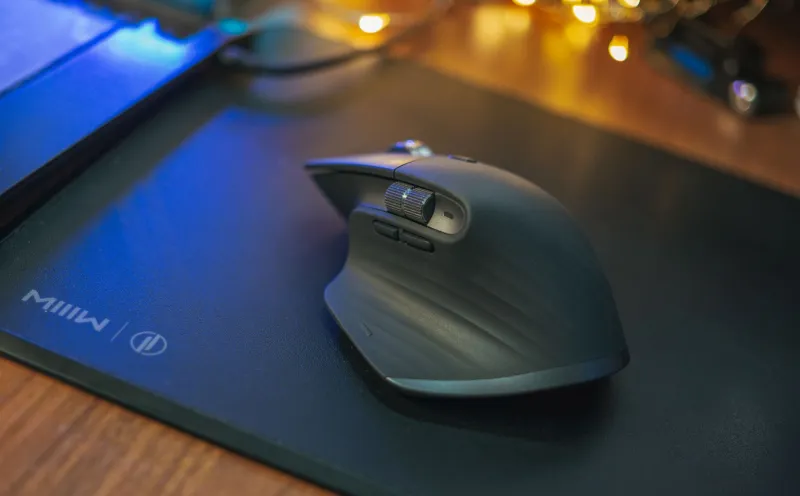
Photo: wireless ergonomic office mouse with many side buttons on a desk, via wallpaperaccess.com
There’s a certain kind of office mouse that looks like it was designed for a fighter jet. It has a thumb cluster, a sniper button, a profile switch, a horizontal scroll rocker, and two extra buttons near the index finger. The box says “ergonomic.” The software says “customizable.” Your hand says, “I just needed to open a spreadsheet.”
That mismatch is the button bloat problem. Somewhere along the way, more controls became shorthand for a more advanced mouse. For remote workers, though, the opposite is often true: the more buttons you have to avoid, remember, or accidentally press, the more your hand has to work. A simpler mouse can be the more ergonomic choice — not because extra buttons are evil, but because unused controls are still physical objects under your fingers.
The Extra Buttons Aren’t Free
A mouse button costs you something even when you never deliberately click it. It changes where your thumb rests. It adds another surface to brush against when you reach for the scroll wheel. It may force your grip into a slightly different position than you’d choose on a plainer shape.
And then there’s the mental tax. If you’ve mapped a side button to “paste as plain text” six months ago and forgot, every stray thumb press becomes a small interruption. You hit the button, nothing useful happens, and your brain spends a second wondering why. Do that a dozen times a day and it’s not a crisis, but it is friction.
None of this means multi-button mice are bad. If you live in a CAD program, a video editor, or a spreadsheet with a dozen macros, extra buttons can be genuinely great. The problem is buying a ten-button mouse for a job that mainly involves email, a browser, and a video call. That’s like buying a food processor to make one smoothie.
Start With a One-Week Button Audit
Before you blame your mouse — or buy a new one — spend a week paying attention to what you actually press. This isn’t a lab experiment. It’s a sticky note and a little honesty.
Day 1: Label the controls. Write down every button on your mouse: left click, right click, wheel click, thumb buttons, DPI switch, profile button, whatever else is there. Put the list next to your keyboard. If you don’t know what a button does, that’s already useful information.
Days 2–5: Make a tally. Each time you deliberately use a button, add a mark. Don’t count accidental presses separately at first; just notice them. If you keep hitting the back button when you meant to grab the mouse, write “oops” next to it. By Wednesday, patterns will show up.
Day 6: Review the losers. Most remote workers will find the same thing: left click, right click, and the scroll wheel do almost all the work. Maybe one thumb button gets used for back/forward in a browser. The rest are decoration. The DPI switch might get pressed once a month. The profile button might never be touched after setup.
Day 7: Decide what earns its keep. A button stays if it saves you a real, repeated action. Alt-Tab, copy, paste, back, forward, mute — those can make sense. A button that only exists because the mouse has a slot for it does not.
Remap, Disable, or Let It Go
Once you know which buttons are dead weight, you have three options.
First, remap the useful ones. Most mouse software lets you assign keystrokes, macros, or system commands. Keep it boring: back, forward, copy, paste, Enter, Escape, and maybe a mute toggle for calls. Avoid stacking complex macros on tiny thumb buttons unless you have steady hands and a high tolerance for surprise.
Second, disable the ones you never use. This is the step people skip. You don’t have to leave a button mapped to something random just because the software allows it. Set it to “disable,” “do nothing,” or “unassigned.” If your mouse software won’t let you disable a button, remap it to a harmless key you rarely press, or check whether the manufacturer offers a simpler firmware utility. On some models, holding a button combination toggles it off; on others, you may need to create a blank profile.
Third, consider whether the mouse itself is the problem. If the shape forces your thumb onto a cluster of buttons you don’t want, a simpler model may fit your hand better. You don’t need to spend a lot. A basic two-button mouse with a decent scroll wheel and a comfortable shape can be more ergonomic than a feature-packed model that makes you hold your hand in a claw.
The Case for a Less Busy Mouse
Ergonomics is often about reducing unnecessary effort, not adding more adjustments. A mouse with fewer controls can be easier to grip, easier to clean, and easier to hand off to a family member without a ten-minute software tutorial. It also makes accidental clicks less likely, which matters more than it sounds when you’re on a video call or editing a shared document.
That doesn’t mean everyone should downgrade to a bare-bones mouse. If you’ve done the audit and your side buttons are genuinely saving you time, keep them. The point is to choose controls on purpose instead of accepting them because they came in the box.
So before you shop for a so-called ergonomic mouse with more buttons than a TV remote, try subtracting first. Audit your clicks for a week, disable the dead weight, and see whether your hand feels less busy. Often, the most ergonomic upgrade is the button you stop pressing.