Spin Doctor: Picking a Mouse Wheel That Doesn’t Wear Out Your Hand

Photo: Shixart1985, CC BY 2.0, via Wikimedia Commons
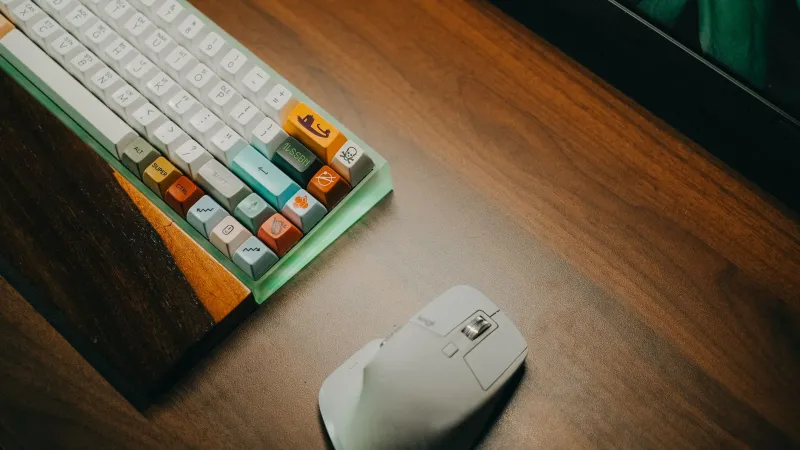
Most mouse reviews spend hundreds of words on sensor specs, then sum up the scroll wheel with a single line: “The wheel feels fine.” That was a reasonable shortcut when mice were mostly pointing devices. In 2026, with remote work stretching from a morning inbox sprint to an afternoon spreadsheet marathon, the wheel is less of a bonus feature and more of a production tool. If your hand is tired by 3 p.m., the wheel deserves a closer look.
The Wheel Became a Full-Time Job
Think about your last browser research session. You probably scrolled through a dozen tabs, nudged a PDF around, zoomed in on a chart, and clicked the wheel to open links. That is a lot of small, repetitive motion from one finger — usually the index finger — while the rest of the hand holds steady. Add a long document review or a budgeting spreadsheet, and the wheel starts to look like the busiest control on your desk.
The problem is that buyers rarely test the qualities that matter over an eight-hour day. In a store, a wheel feels fine for ten seconds. At home, after four hours of tax-season spreadsheets, “fine” can turn into a cramp. The wheel’s tension, step size, and mode all shape how much work your finger does per line of text.
Tension: The Goldilocks Setting You Can Feel in Five Minutes
Wheel tension is the resistance you feel as you turn the roller. Too light, and the wheel spins with almost no feedback, which can make precise line-by-line scrolling feel jumpy. Too heavy, and every nudge becomes a tiny finger workout. Neither is automatically bad, but they suit different hands and tasks.
A practical test: open a long document and scroll down exactly five lines. Then scroll back up five lines. Repeat ten times. A wheel with good tension for you should let you stop on a dime without overshooting and without your finger feeling like it is fighting a spring. If you keep scrolling past your target or mashing the wheel to get it moving, the tension is wrong for your hand.
This matters more for people with smaller hands or existing finger strain. The wheel is operated by one of the weakest sets of muscles in the hand, and small resistances add up. A firm, clean notch is often easier to control than a mushy or overly light wheel, but the right answer is the one you can repeat comfortably.
Ratchet vs. Free-Spin: Match the Mode to the Task
Ratcheted wheels click through each step. They are great for line-by-line reading, form fields, and anything where precision matters. Free-spin wheels unlock and glide, which is lovely for blasting to the bottom of a long webpage or spreadsheet. The catch is that free-spin can be too loose for fine work, and ratchet mode can feel tedious during a 40-page PDF review.
Some mice let you toggle between the two. That flexibility is genuinely useful if your day swings between tasks. But don’t assume you need it. If you mostly read documents and edit cells, a well-tuned ratchet wheel may be simpler and more predictable. If you live in long dashboards and research rabbit holes, a free-spin mode can cut down on repeated finger flicks.
The ergonomic angle is repetition. Every extra flick is another small movement. A wheel that matches your scrolling style reduces the number of corrections you make. That is the quiet win most spec sheets never mention.
Tilt and Side Scroll: Useful, But Not Free
Horizontal scrolling via a tilt wheel or thumb wheel can be a lifesaver in wide spreadsheets and timeline tools. Instead of dragging a scrollbar across the bottom of the screen, you nudge the wheel sideways. For finance folks, project managers, and anyone who lives in a wide table, that can be a real improvement.
But side controls are not free. They add another motion and another set of muscles to the mix. Some tilt wheels require a firm push that can feel awkward after a while. Others are so sensitive that you trigger them by accident. If you rarely scroll sideways, a tilt wheel may be unnecessary complexity. If you do it constantly, test whether the side motion feels natural or like a workaround.
Middle-Click Is a Shortcut and a Strain
Middle-click is one of those features that seems minor until you use it all day. Opening links in new tabs, closing tabs, and autoscrolling are handy. But pressing down on the wheel can be stiff, and some mice make it feel like you are compressing a small spring. If you middle-click dozens of times an hour, that pressure matters.
Try a simple count: keep a tally for one hour of browser work. How many times do you click the wheel? If the number surprises you, look for a mouse with a lighter, cleaner middle button — or consider using keyboard shortcuts for the same actions. Ctrl+click can replace some middle-click habits, and a dedicated side button can take over others. The goal is not to ban middle-click; it is to stop one finger from doing all the heavy lifting.
A Ten-Minute Scroll Audit for Your Desk
Before you shop, spend ten minutes watching how you actually scroll. Open the kinds of files you use most: a long report, a wide spreadsheet, a browser with too many tabs. Notice whether you scroll in short bursts or long glides. Pay attention to overshoot. Do you constantly correct your position? Does your finger drift to the edge of the wheel? Does your hand tense when you middle-click?
Then rate three things on a scale of one to five: control, comfort, and effort. If control is low, tension or ratchet feel may be the issue. If comfort is low, the wheel may be too stiff or too small. If effort is high, you may be doing too many small flicks — a sign that free-spin or a different step size could help. This is not a lab test. It is a desk test, which is the one that counts.
What to Look for in 2026
When you read reviews this year, look past “the wheel scrolls smoothly.” Look for notes on tension, step definition, free-spin toggles, tilt resistance, and middle-click force. If you can try a mouse in person, bring a mental script: five-line scrolls, a long glide, a sideways nudge, and a few middle-clicks. If you buy online, favor retailers with easy returns and test the wheel first, before you get attached to the shape.
The scroll wheel is not the flashiest part of a remote work setup. It is just the part your finger uses hundreds of times a day. Treat it like a real control, and your hand will notice the difference by Friday afternoon.